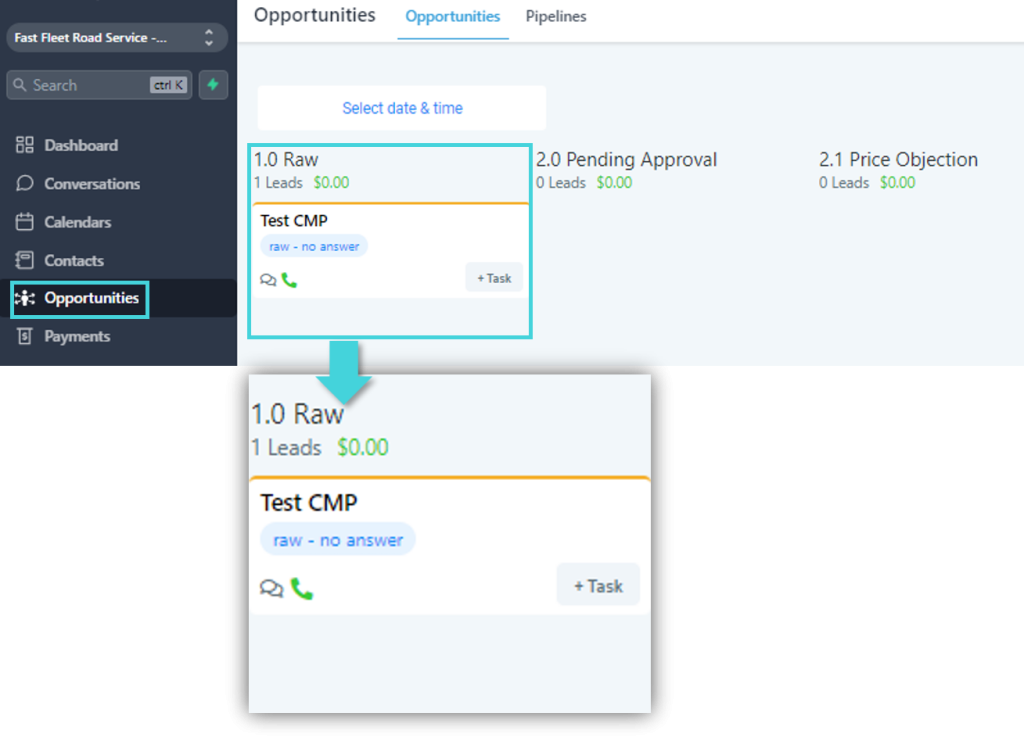
Leads are automatically added into the raw stage coming from various lead channels such as but not limited to Website, Facebook ads, and Google ads.
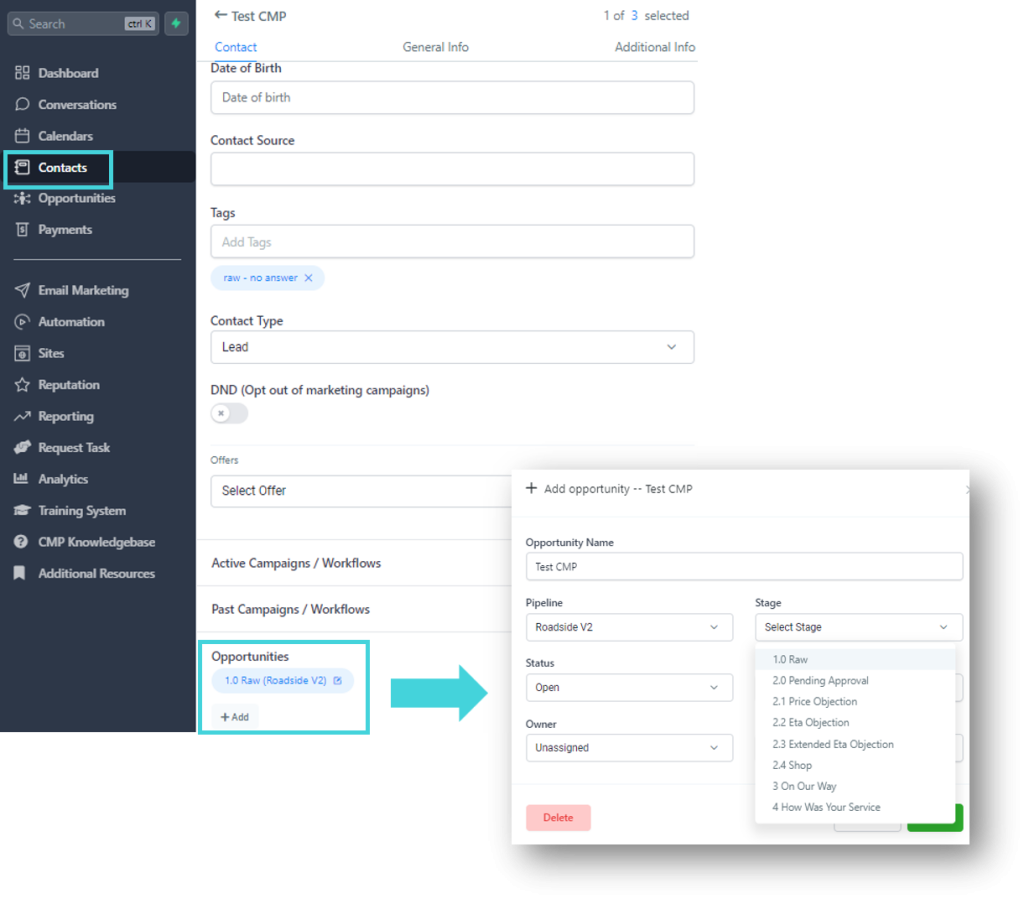
Alternatively, you can also add a lead manually into this stage by opening the contact record, clicking add under opportunities, and selecting the corresponding pipeline and raw stage.
Leads are automatically removed from this stage as soon as they are progressed to the next stage.
Will leads automatically be moved to this stage based on a triggered event, or does the lead need to be moved here manually by the dispatcher?
This is an automated stage.
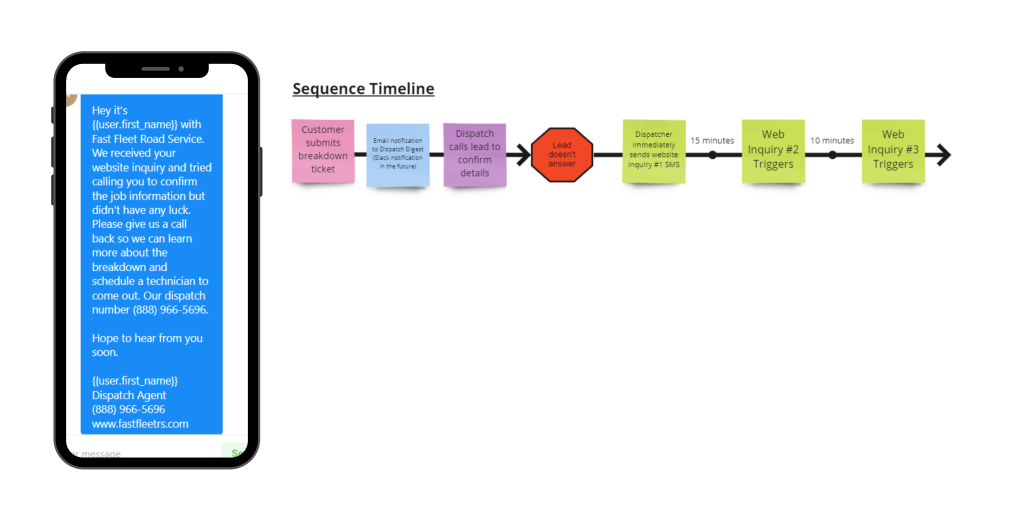
The system automatically broadcasts a series of SMS within a specific time gap, to the leads at this stage.
The messages are structured to have an organic and personal feel to them as if the dispatcher themselves sent the message, with the objective of acnowledgin the request and automating attempts to reach out to the customer until a confirmation is made.
Leads are manually added into this stage by the assigned user by dragging the record from raw to this stage. A lead qualifies for this stage when a caller gets Fast Fleet rates and says they need to check with the driver or their boss before moving forward.
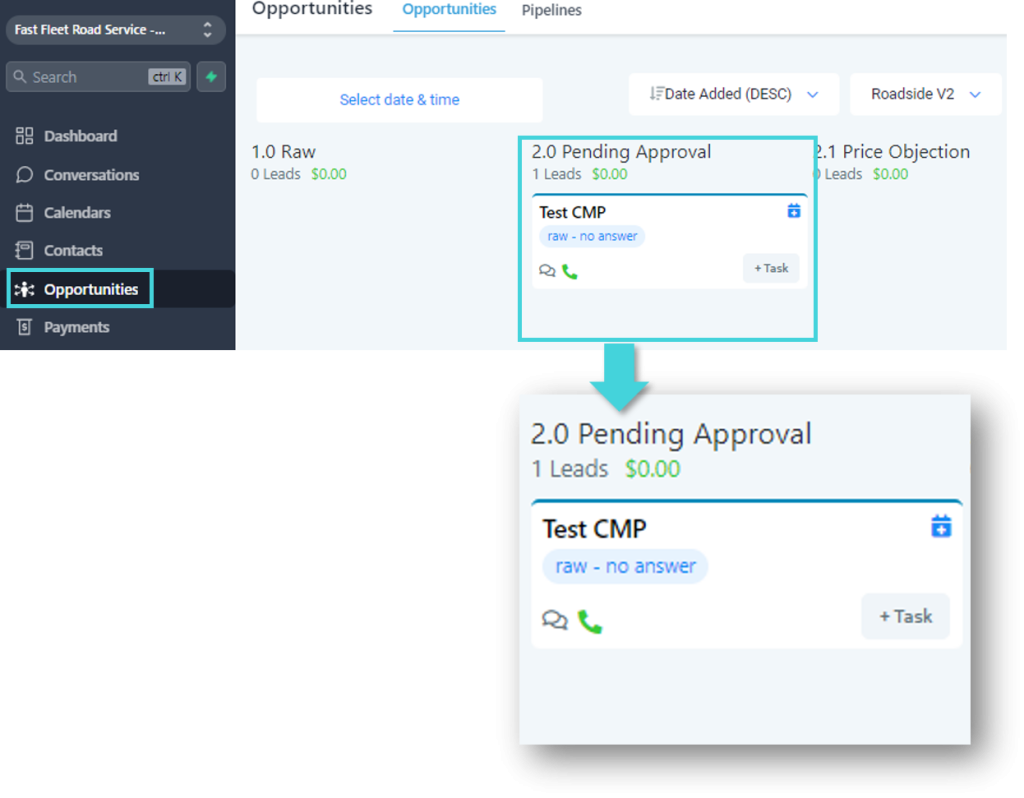
Leads are automatically removed from this stage as soon as they are progressed to the next stage.
Will leads automatically be moved to this stage based on a triggered event, or does the lead need to be moved here manually by a dispatcher?
This is a manual stage.
The system automatically broadcasts a series of follow-up SMS within a specific time gap, to the leads at this stage.
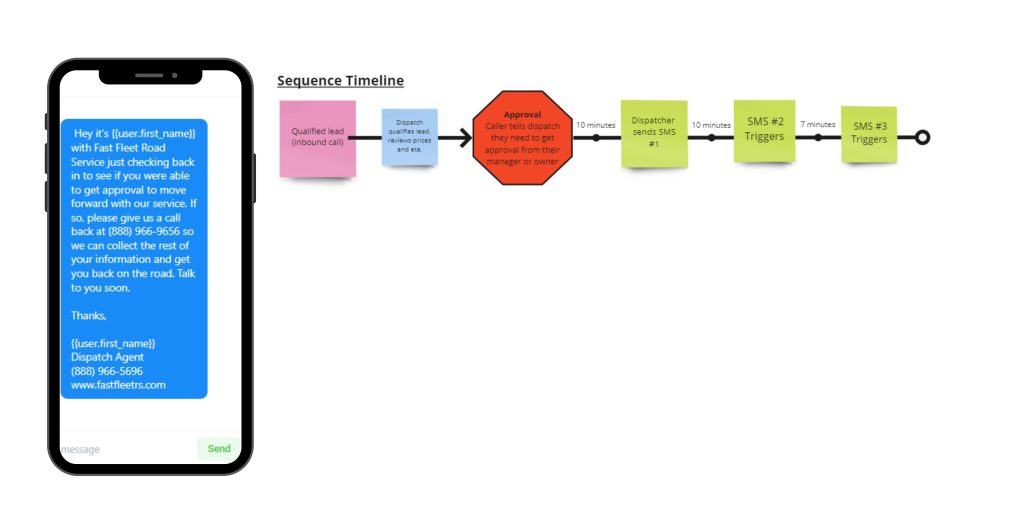
Leads are manually added into this stage when the caller receives your rates and says they need to check with the driver or their boss before moving forward.
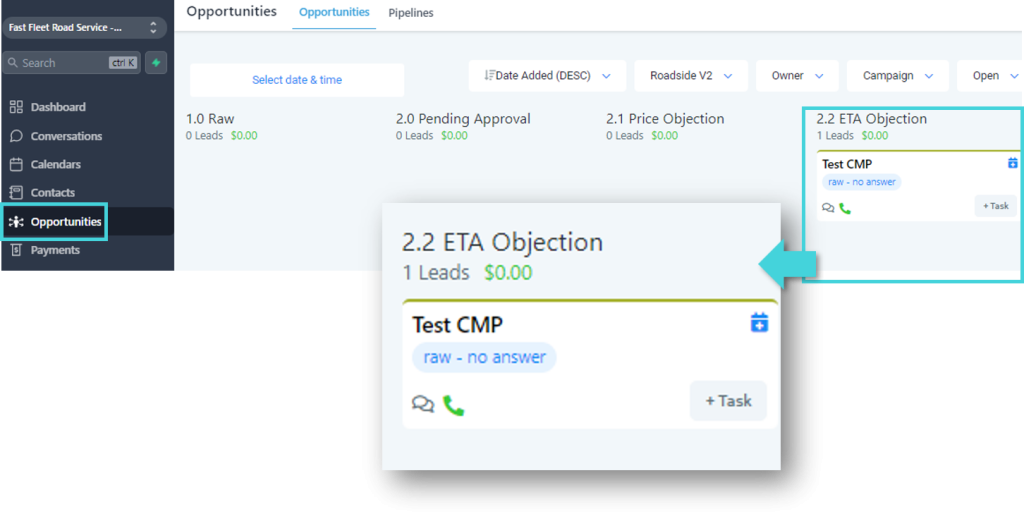
Leads are automatically removed from this stage as soon as they are progressed to the next stage.
Will leads automatically be moved to this stage based on a triggered event, or does the lead need to be moved here manually by a dispatcher?
This is a manual stage.
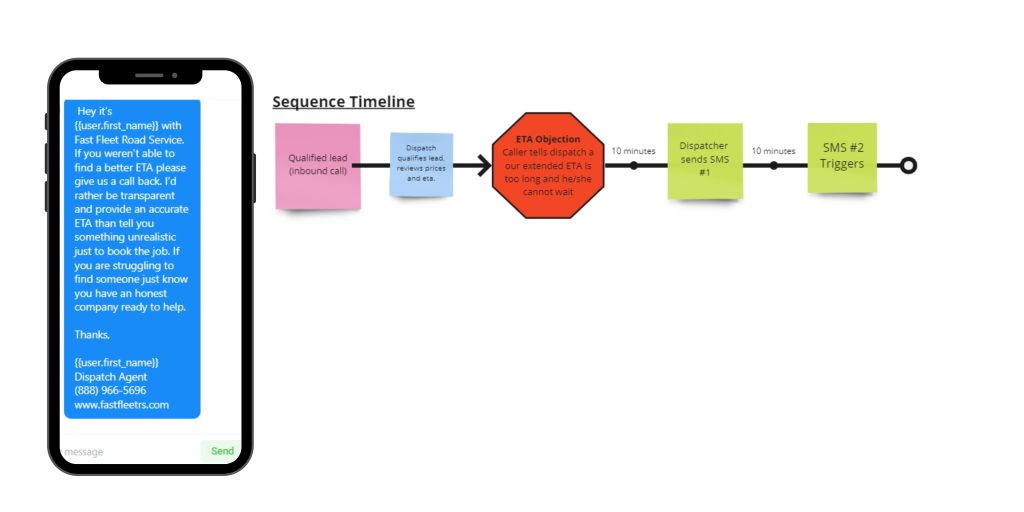
The system automatically broadcasts a series of follow-up SMS within a specific time gap, to the leads at this stage.
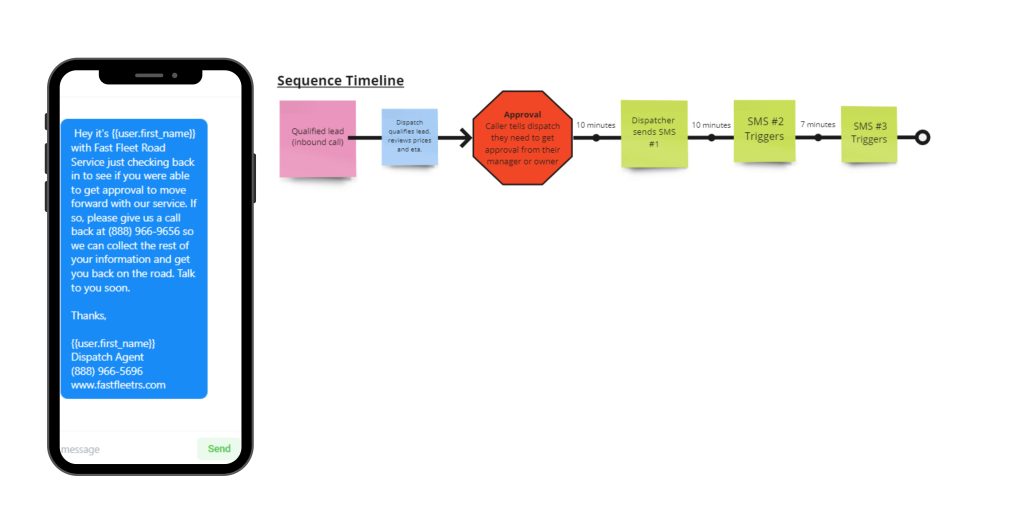
Leads are manually added into this stage when the caller rejects the extended ETA.
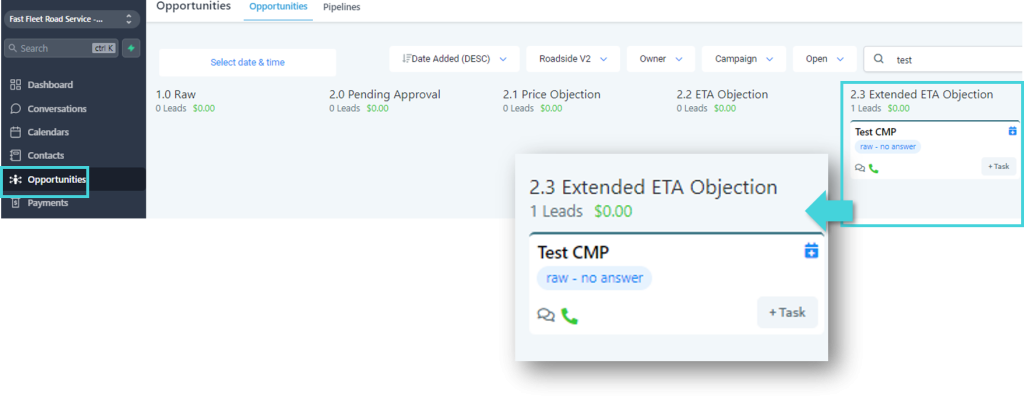
Will leads automatically be moved to this stage based on a triggered event, or does the lead need to be moved here manually by a dispatcher?
This is an manual stage.
A series of follow-up SMS is distributed to the leads at this stage, within a specific time gap. Each of which has the objective of addressing extended ETA objections. If we give a 2-1/2 to 3 hour ETA there’s a good chance the caller will find someone with a better ETA but this SMS attempt confirms the opportunity is closed.
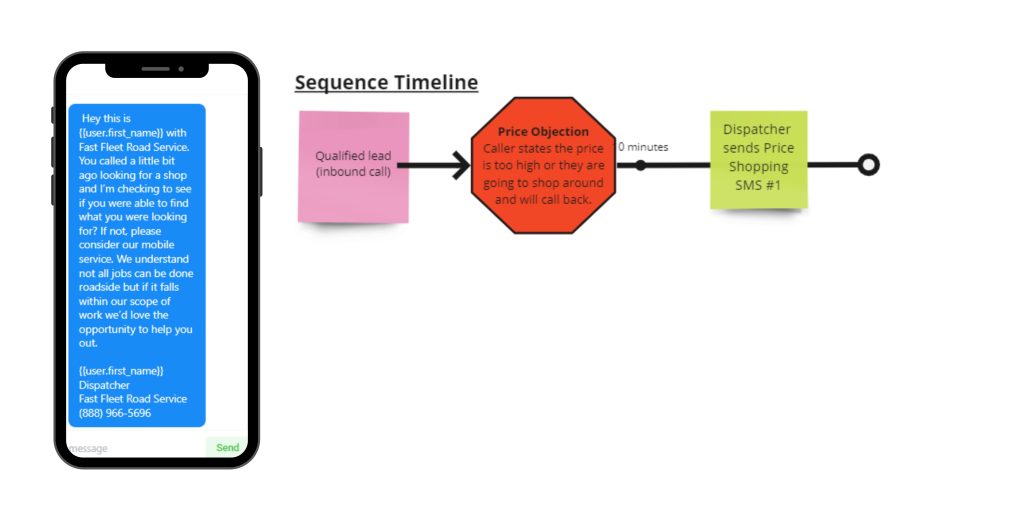
Leads are manually added into this stage when the caller claims that the provided rates are high and they are going to look for a cheaper option.
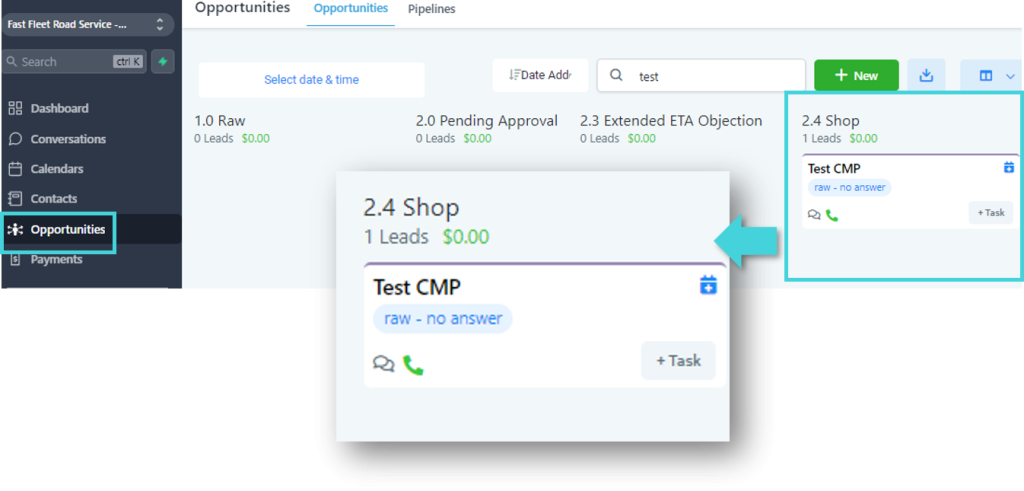
Leads are automatically removed from this stage as soon as they are progressed to the next stage.
Will leads automatically be moved to this stage based on a triggered event, or does the lead need to be moved here manually by a dispatcher?
This is a manual stage.
A follow-up SMS is distributed to the leads at this stage, with the objective of winning over Price Shoppers.
Leads are manually added into this stage by the assigned user . Use this stage when the job is confirmed and you want to update the customer that the technician is on his way.
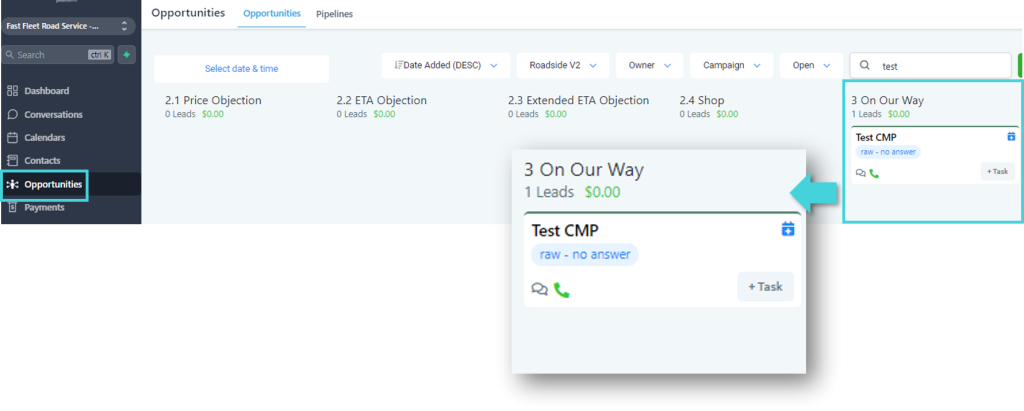
Leads are automatically removed from this stage as soon as they are progressed to the next stage.
Will leads automatically be moved to this stage based on a triggered event, or does the lead need to be moved here manually by dispatcher?
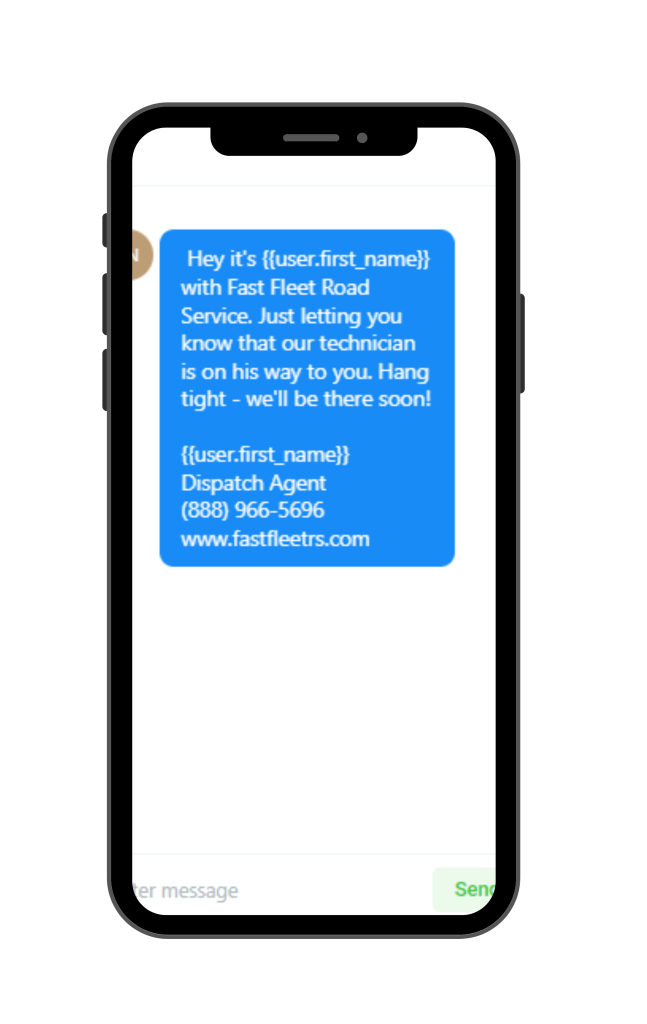
This is an automated stage.
An SMS is sent to the contact as an update that the technician is on his way.
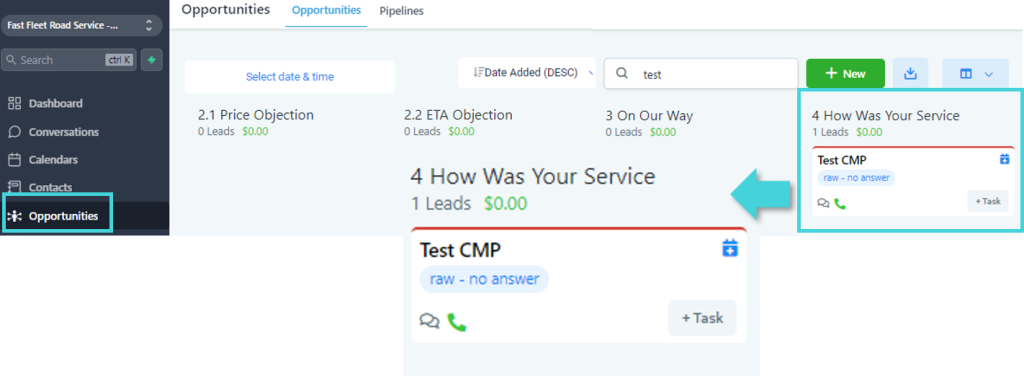
Leads can be manually added into this stage in order secure a GoogleMyBusiness Review once the service is fulfilled. In order to maintain a good online reputation, it’s recommended to apply this opportunity stage only to clients who most likely had a positive experience.
Is this a manual or automated stage?
Will leads automatically be moved to this stage based on a triggered event, or does the lead need to be moved here manually by a dispatcher?
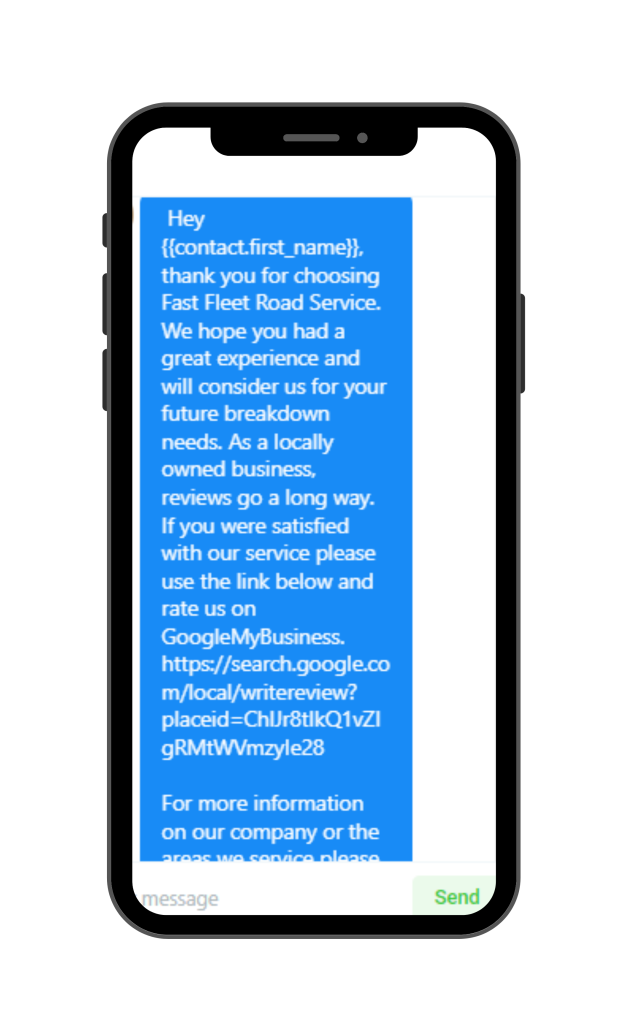
This is an automated stage.
An SMS requesting for GMB is sent to the client as soon as the stage is updated accordingly.
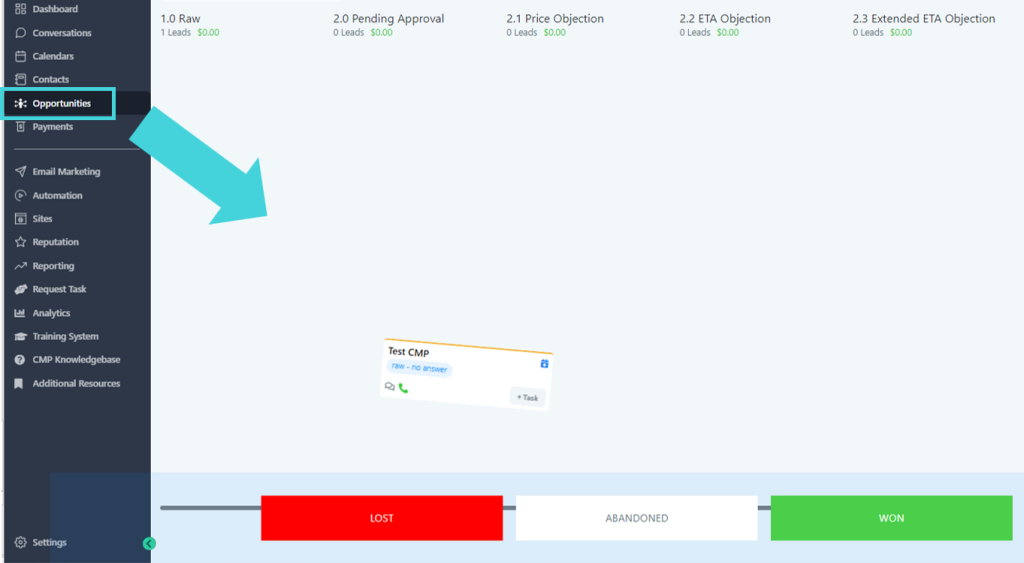
To update the opportunity status, simply go to opportunities, select the opportunity you’d like to update, and drag the lead to either lost, abandoned, or won.
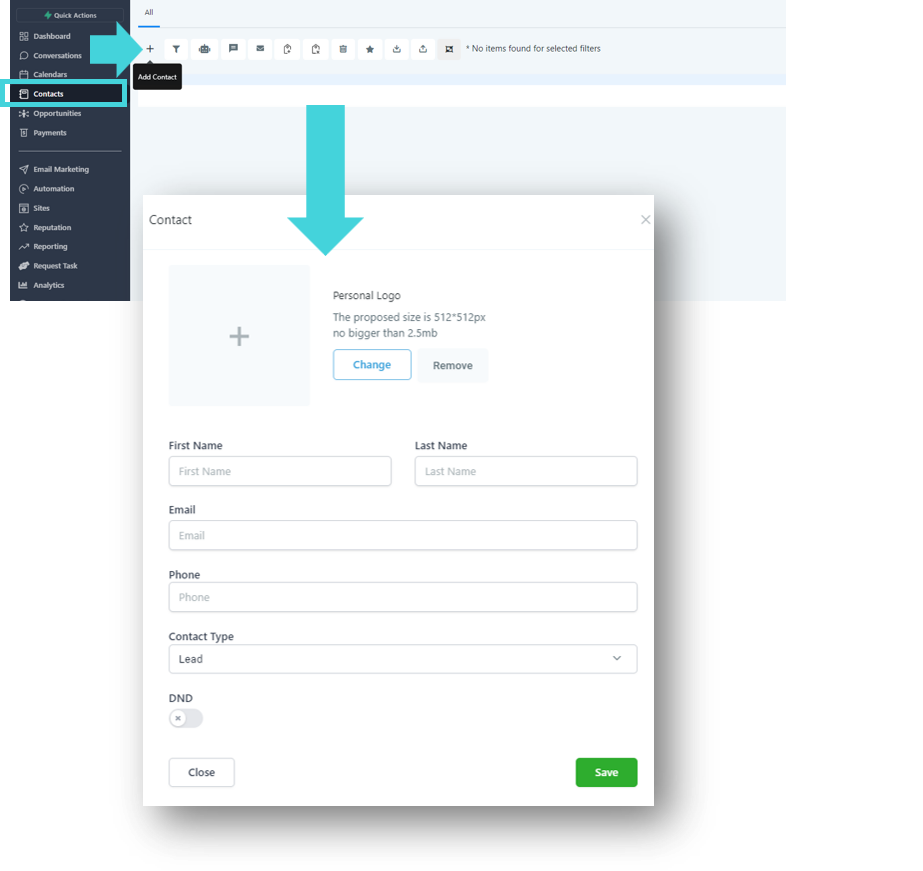
To manually create a contact, go to “ contacts ”, select the plus sign, input the contact details and hit save.
To create an opportunity manually, go to contacts, select the lead you wish to add to the opportunity pipeline, and click “Add” under the Opportunities field.
Once clicked, a pop-up will appear asking you for the corresponding details as shown below.
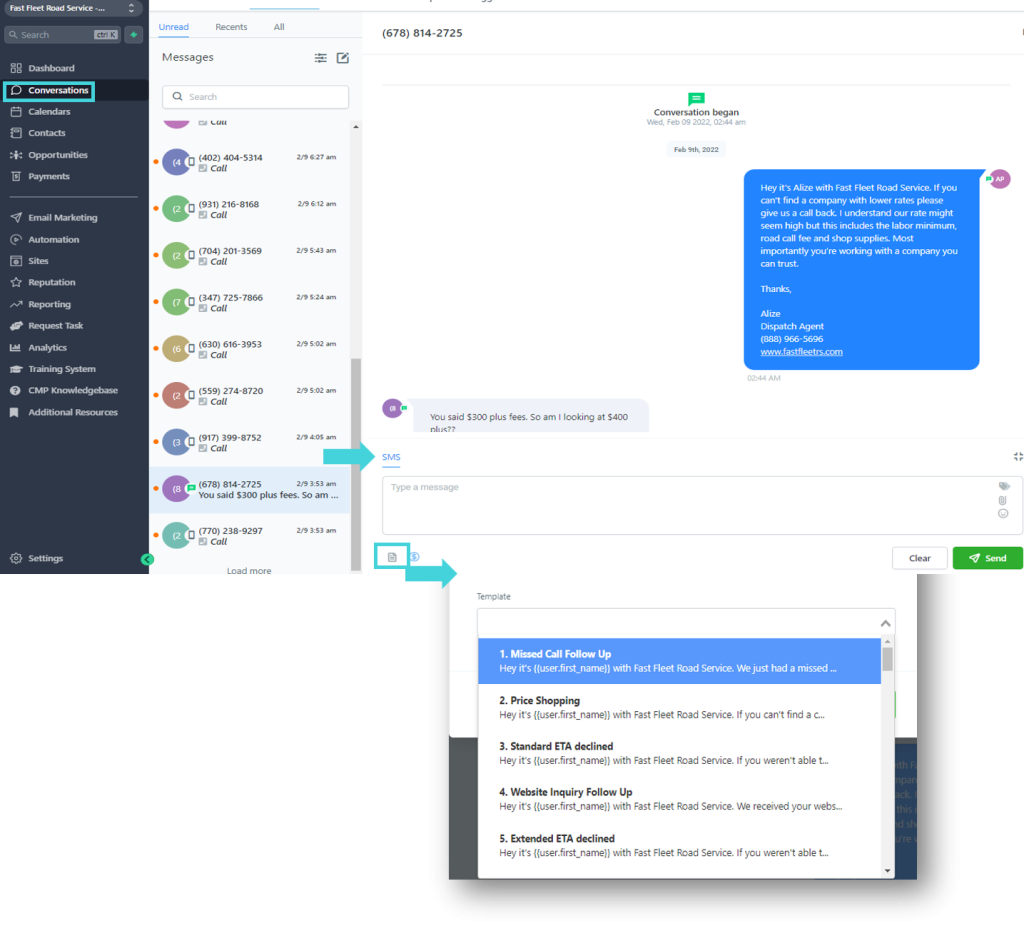
Go to the conversations panel of CMP in order to view and respond to calls, emails, SMS, Facebook messages and GMB reviews. SMS Templates are available for your use.
Alternatively, you may also go to a specific contact to view and respond to these actions.
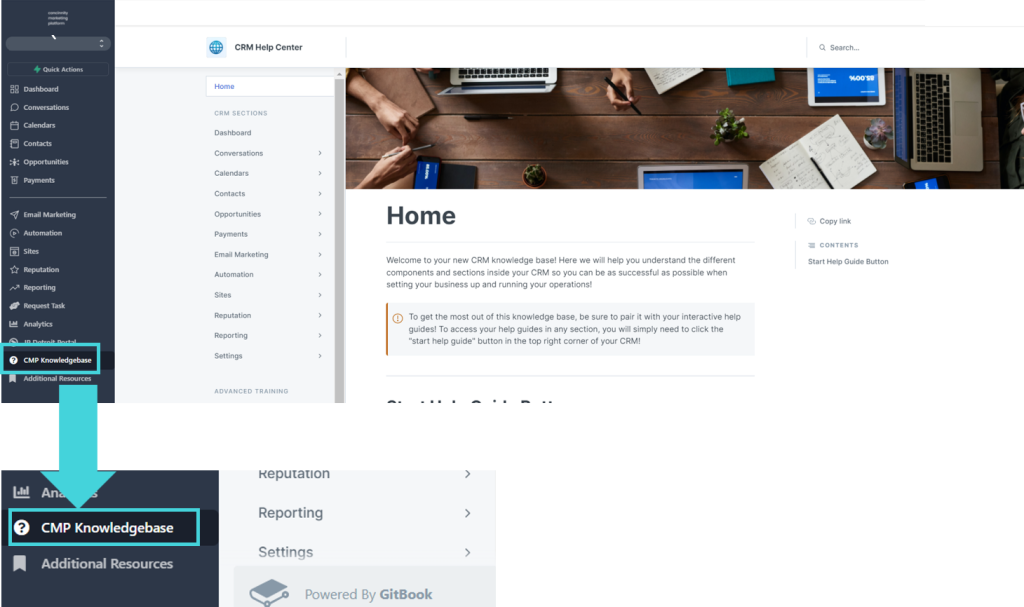
Yes, to access our interactive user guide please go to CMP Knowledgeable.