Concinnity Onboarding Platform
Outlook Integration with CMP
Step-by-step Guide in Connecting Outlook with the Concinnity Marketing Platform
Outlook Integration with CMP
1. Create new calendar in Outlook
2. Go to the CMP user, ensure they have integrated their outlook account
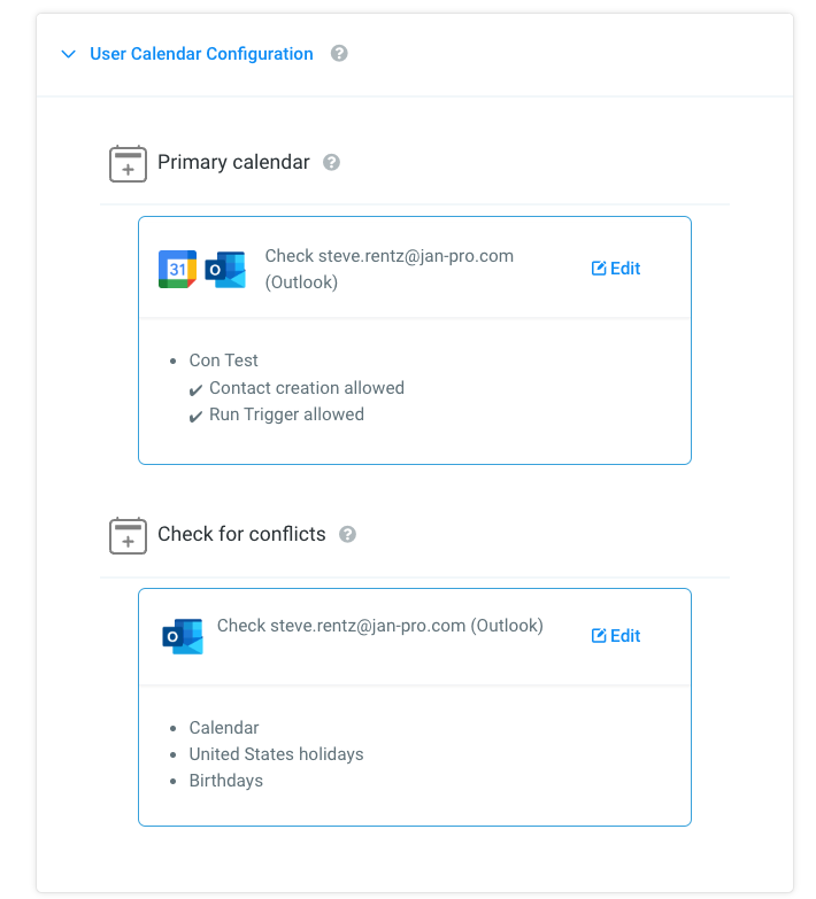
3. Under the CMP user profile, go to > user calendar configuration
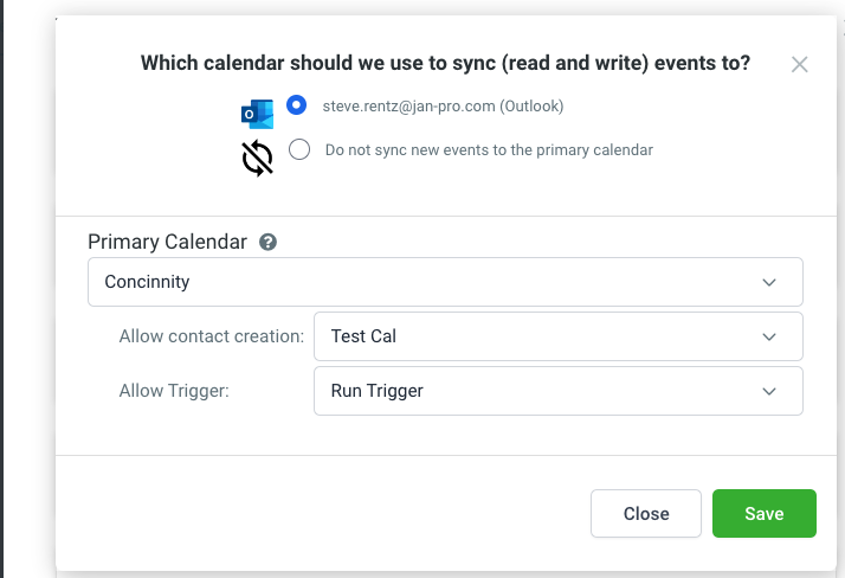
a. Select the newly created calendar in outlook
b. Ensure that “contact creation allowed” and “run trigger allowed” are highlighted as yes
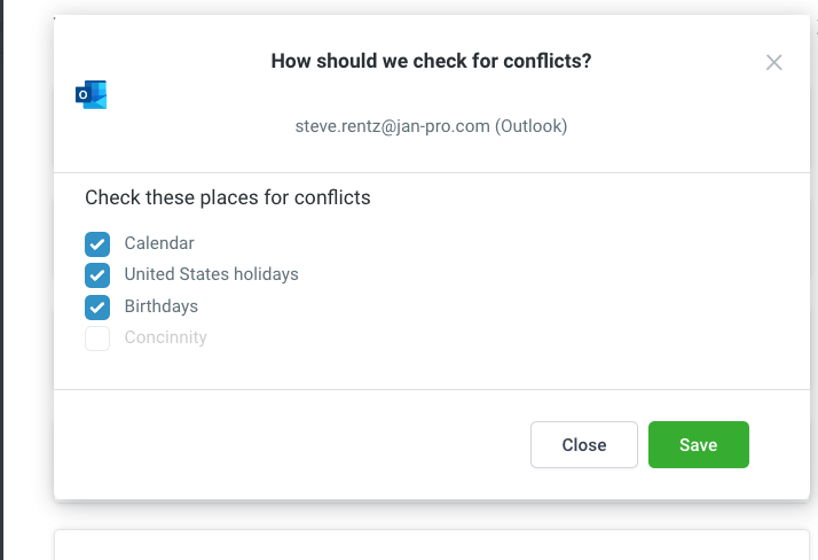
4. Ensure under “Check for conflicts” that all other calendars are highlighted. This prevents dual bookings under the new calendar.
a. This prevents dual bookings under the new calendar.
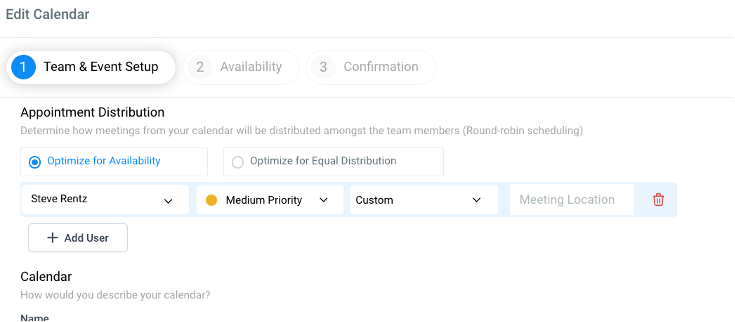
5. Under “calendars” in the settings of the CMP
a. Go to the relevant franchise or accounts calendar
b. Under “optimize for availability” add the corresponding user or users
c. Save the configuration
6. Test a 2 way sync
a. Have the user enter an event in their outlook calendar to ensure the integration syncs to the CMP
b. Create a calendar event in the corresponding calendar in the CMP to ensure that it syncs to the Outlook account calendar.
How to create SMS Campaigns
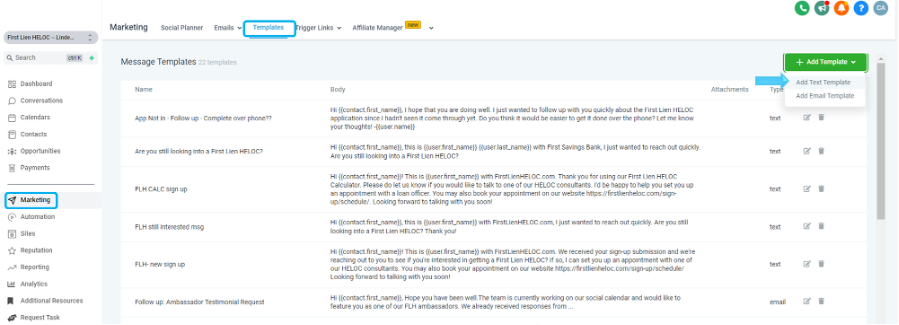
1. Create a text template by going to Marketing Templates and clicking Add Template, select text template.
2. Once you’ve created all the templates
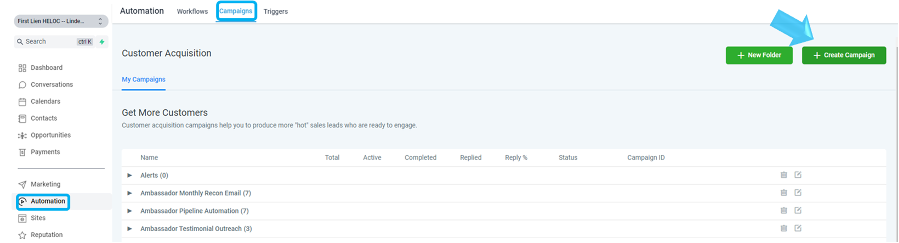
a. Create the campaign. Go to Automations< Campaigns
b. Create Campaign and then select the text templates and configure campaign settings.
Loom Tutorial